

Five Causes of Mermaid Rendering Failures in AI Drafts

What you’ll learn
- Five rendering problems found in AI-generated Mermaid diagrams and why they occur
- How to fix special characters, arrows, long labels, Japanese text, and nested structures
- A verification process that checks browser rendering instead of stopping at plausible syntax
Verify That Mermaid Diagrams Render After Generation
An AI-created Mermaid (a text-based diagram syntax) diagram can look syntactically valid yet render incorrectly because of special characters, arrows, long labels, Japanese text, or nested structures. On this site, completing the notation did not always mean the browser display was complete. Publication therefore requires checking the rendered result, not only the syntax.
By the end of this article, you will have practical criteria for answering “Where should I start when a Mermaid diagram looks valid but does not render correctly?” in your own context.
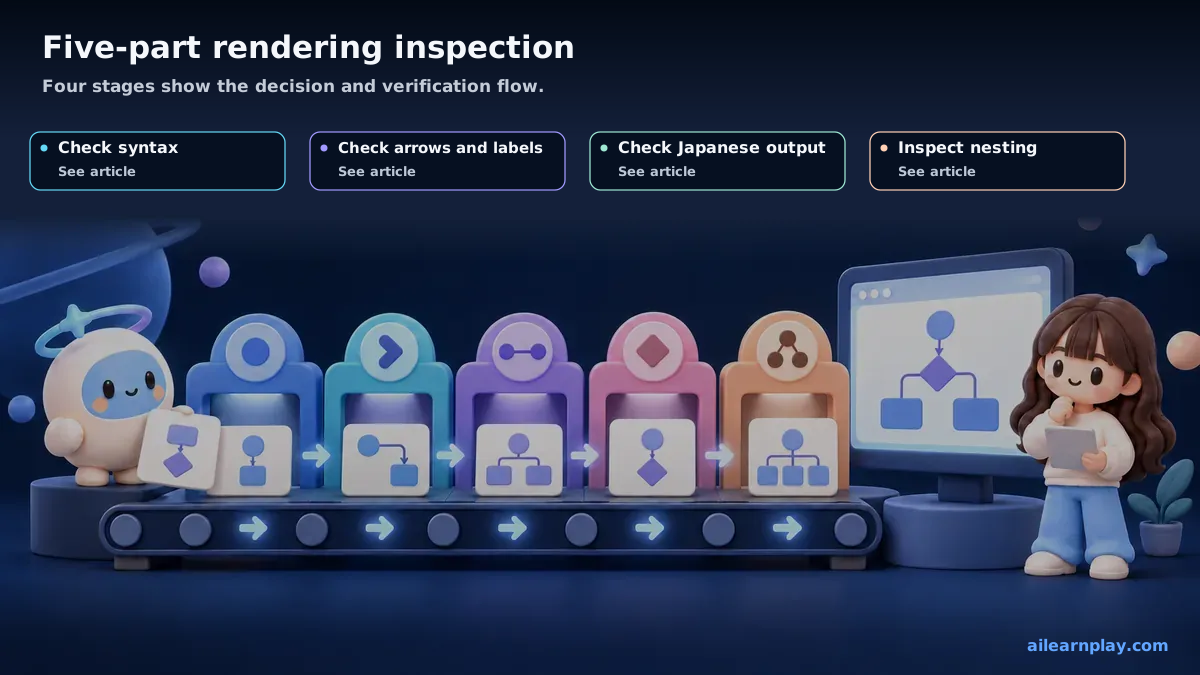
Verify Mermaid Diagrams Across Five Checks
Mermaid is a tool that automatically generates diagrams — flowcharts, sequence diagrams, and others — from plain text descriptions. Because Mermaid notation written in a Markdown file renders as a diagram, it is a convenient way to include visuals in documentation.
AI-assisted Mermaid notation works correctly in many cases, but specific patterns caused diagrams to fail to render as intended. This article records five such patterns and how each was resolved. Mermaid syntax and rendering behavior can vary by version and rendering environment, so this article reflects what I confirmed on this site as of June 22, 2026.
Strings Containing Parentheses or Special Characters Break
Parentheses and Special Characters Can Conflict with Mermaid Syntax
When a node label included parentheses or symbols — such as (optional) or API / SDK — the diagram stopped rendering. Some symbols can be interpreted as Mermaid syntax depending on node notation and Mermaid version.
Quote Strings to Prevent Syntax Conflicts
Enclose labels in quotation marks. In Mermaid notation, writing a label in the form ["text"] makes it easier for the content to be treated as a label. When asking AI to generate diagrams, I either explicitly say “use quotation marks when labels contain special characters” or verify and correct this after generation.
Arrow Direction Between Nodes Is Reversed
Arrow Syntax and Node Order Can Reverse the Intended Direction
When creating a flowchart to represent a processing sequence, several arrows pointed in the wrong direction. A relationship intended to mean “A calls B” was displayed as “B calls A.”
Mermaid Draws Arrow Start and End Points from the Syntax
AI can produce syntactically valid Mermaid code but still misinterpret the direction of a relationship — which node calls or depends on which — when the description is ambiguous.
Verify Arrow Start and End Points in the Rendered Diagram
When requesting diagrams, I specify direction explicitly using phrasing like “from A to B.” I then display the generated diagram, identify any reversed arrows, and correct them. The fix is straightforward — changing A --> B to B --> A — so I review after generation and correct as needed.
Labels That Are Too Long Cause Layout to Break
Long Labels Break Node Width and Wrapping
When I tried including detailed descriptions in node labels, the diagram spread too wide horizontally and became difficult to read.
Shorten Labels and Move Detail into the Body
I now keep node labels short and place supplementary explanation in the text outside the diagram. When asking AI to generate a diagram, specifying “keep node labels to around 10 to 15 characters” tends to produce more compact results.
Japanese Text Causes Display Issues
Japanese Fonts and Line Breaks Can Distort Rendering
In Mermaid diagrams containing Japanese labels, some characters did not display correctly. How Japanese text is handled depends on the Mermaid version and rendering engine in use.
Shorten Japanese Labels and Verify the Rendering Environment
I first confirm whether Japanese text works in the specific Mermaid version and rendering environment being used. When the problem reproduces, I switch to writing labels in English and placing Japanese explanations outside the diagram. Telling AI “please write labels in English” is the most reliable way to avoid this issue.
Nested Structures Are Not Interpreted as Intended
subgraph Boundaries and Connections Can Differ from the Intended Nesting
When using subgraphs to group related nodes, the grouping did not match what I intended. Nodes that should have been inside a group appeared outside it, or groups were duplicated.
Mermaid Interprets Nested Boundaries and Targets from the Syntax
Mermaid’s subgraph notation is defined by the subgraph and end structure. Indentation helps readability, but group membership must be checked in the syntax. Even when AI generates syntactically valid code, the group boundaries can differ from the intended structure.
Define Nesting Levels and Connection Targets Separately
When nested structures are involved, I verify the generated code in a Mermaid online editor or live preview before using it. When problems are found, I correct the position of end statements. For cases requiring complex nesting, I ask AI to generate the structure in stages — starting with a simple skeleton and adding detail incrementally — which makes each step easier to verify.
Summary: Treat a Mermaid Diagram as Complete Only After Five Browser Checks
Problems with AI-generated Mermaid notation usually stem not from unfamiliarity with the syntax itself, but from specific constraints: special character handling, relationship direction, label length, differences in fonts, CSS, renderer, and library version, and nested group boundaries.
Having a preview step after generation and a set of correction patterns for each issue type reduces the time needed to resolve these problems.
Start by opening the problematic diagram in the browser and isolate special characters, arrows, labels, Japanese text, and nesting one at a time. Rendering also depends on the renderer, library version, fonts, and CSS, so another environment may not produce the same result.